Screenshot Drawer

Find the one screenshot you need in a pile of them

Keep screenshots of shopping, outings, and work details, and find them later. Search by category, by text recognized in the image, or by note. Text recognition runs on your device, and your images are never sent off it.

App Store Coming soon
App screen
What you can do

Everything you capture, with a place to find it again

01

Keep saved images even after you delete the originals

Each screenshot is copied into a separate storage area inside the app. Only images whose copy has been confirmed can have their originals removed from your photo library. Tidying up originals in Photos leaves the information you chose to keep within reach.

App screen
02

Find what you need by text in the image or by your notes

Store names and places that appear in an image are searchable. Search for Kyoto Station, for example, to pull up travel or shopping records where that text was recognized. Images with no recognized text can still be found by note.

03

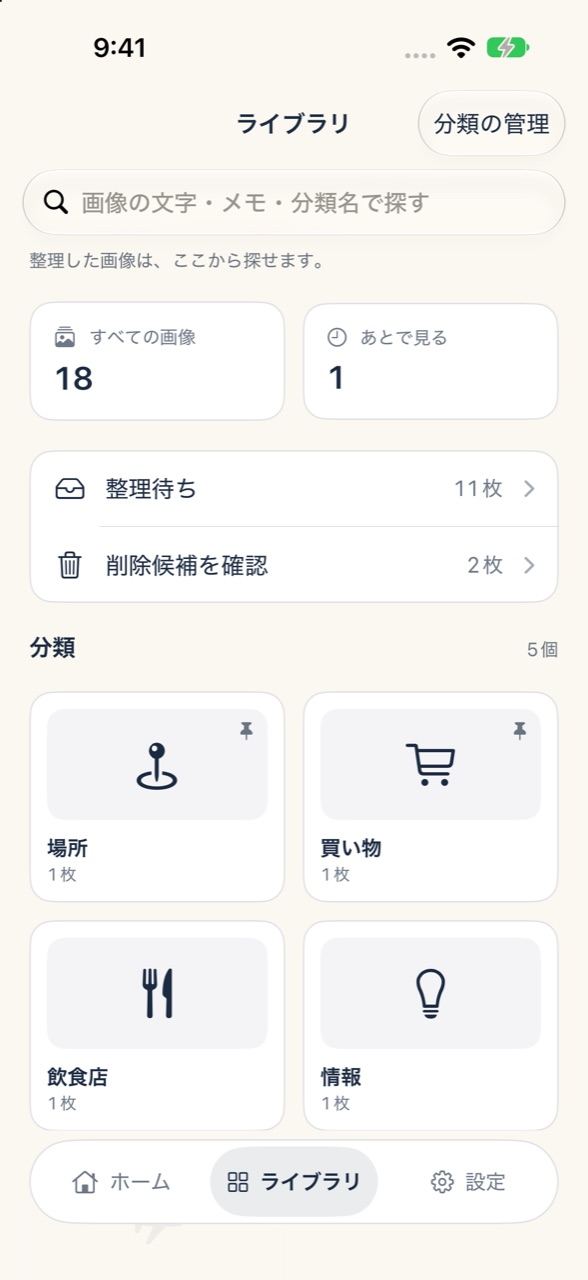
Pick frequently used categories from pinned and recent ones

You can search by category name, so as your categories grow you spend less time hunting for buttons and scrolling. There is no limit on the number of categories, and you can create as many as you like on the free plan.

04

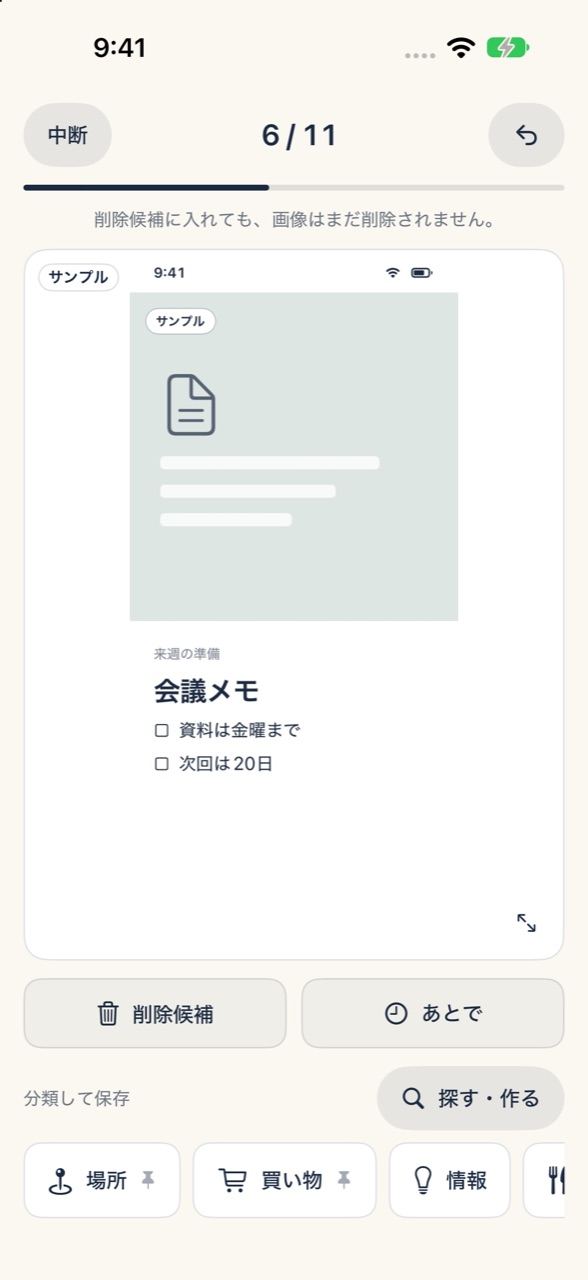
Sort ten at a time, stop partway, and pick up where you left off

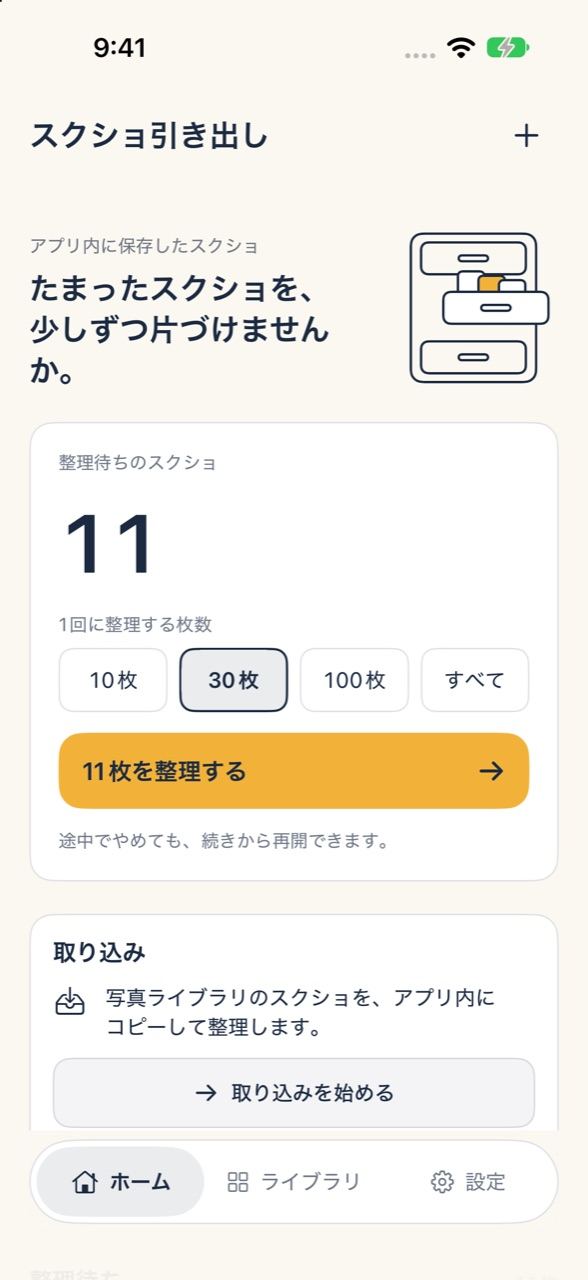
When you start, choose to work through 10, 30, 100, or all images. You can undo the last action, and the session resumes where you left off even after you close the app. You can sort and hold images while watching your progress on screen.

App screen
How it works

Getting started

  1. Allow access to your photos

    On first launch, review where data is stored and how it is handled, then allow access to your photos. You can also allow access to only some images.

  2. Tidy up in spare moments by choosing a batch size

    Choose 10, 30, 100, or all images, then decide for each one whether to sort it, hold it, or mark it as a deletion candidate. If you stop partway, you can resume later.

  3. Find the image you need by category or text

    Browse from the category selection screen or from the list of all images. You can also search by text recognized in images or by note.

Images and recognized text stay on your device

Screenshots and text recognition results are never sent to external servers. There is no automatic cloud sync.

There is no limit on categories

Even on the free plan, the number of categories is not limited, and ads or purchase screens will not interrupt your tidying.

Original photos are deleted only after you confirm

Originals are deleted only for images whose copy inside the app has been confirmed. The confirmation screen shows what will be deleted before anything is removed, and nothing is deleted if you cancel.

FAQ

Questions

Where are screenshots stored?

They are stored in a storage area dedicated to the app on your device, as copies separate from your photo library. They are never sent to external servers.

What happens if I delete the app?

Images, categories, and notes saved in the app are also deleted. Before deleting the app, check whether there is anything you want to keep.

Will deleting the originals always free up storage?

Not always. Because copies remain in the app, free space may not increase right away, depending on how the Photos app handles recently deleted items.

Can I use the app if I don't allow access to my photos?

Yes, the app still opens without access. You can change the permission by following the instructions in Settings, or save images from the share menu and use them that way.

Screenshot Drawer
Everything you capture, with a place to find it again

App Store Coming soon